
Guide
HyperOS Launcher App Drawer: Find Any App in Seconds
Use the HyperOS Launcher app drawer properly: search, recent apps at the top, alphabetical order, and what to do when an app seems missing.

Contents On this page
What the drawer is
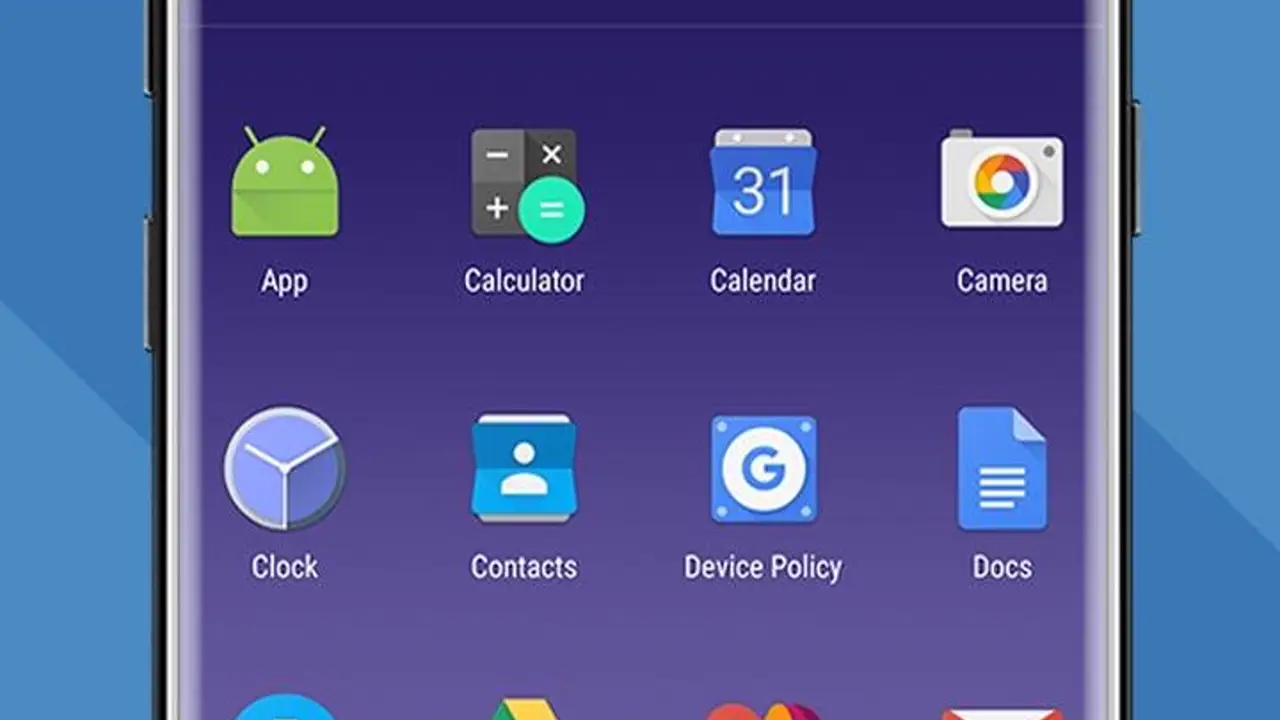
The app drawer is the full list of everything installed on the phone, in one place, searchable by name. The home screen is the apps you chose; the drawer is all of them. Knowing the difference is the difference between hunting and finding. Start with the file from HyperOS Launcher for Android, so the copy on your phone is the build we tested, then follow the steps below in order.
Search first
The search bar at the top of the drawer finds apps, settings and contacts in one place, and it learns which app you mean. Typing two letters of an app name is faster than scrolling to it, and faster than hunting across home screens. Search first is the habit that makes the drawer fast.
Recent apps at the top
The drawer puts your recent apps at the top, so the app you used an hour ago is the first one you see. That row is the bridge between the home screen and the drawer: the apps you use most graduate from the drawer to the home screen, and the ones you use once a month stay in the drawer where they belong.
Alphabetical order
The drawer lists apps alphabetically, which is the only order that works without thinking. You do not need to remember where an app lives, only what it is called, and the alphabet does the rest. A drawer sorted by anything else is a drawer that needs learning, and a drawer should never need learning.
When an app seems missing
An app that seems missing is almost always in the drawer, not deleted. Search for it by name first, then check whether it is hidden from the home screen rather than gone. An app only leaves the phone when you uninstall it, and the drawer shows everything installed, so the search is the proof. The fixes guide covers the case where the search finds nothing.
Drawer or home screen
Put the apps you open daily on the home screen and leave the rest in the drawer. An app that lives on the home screen and in the drawer at the same time is fine; the home screen is a shortcut, not a move. The mistake is putting everything on the home screen, which turns it into a drawer with a wallpaper.
Keeping it fast
The drawer stays fast when it stays alphabetical and searched, not scrolled. Use the search bar, let the recent row carry the apps of the hour, and move only the daily apps to the home screen. The home screen setup guide shows how that move works.
Conclusion
Search first, trust the alphabetical order, and let the recent row carry the hour. The drawer is the full list, and a full list that is searchable is never a hunt.
Quick Answers
How do I open the app drawer?
Swipe up from the home screen to open the drawer, where every installed app is listed alphabetically.
How do I find an app in the drawer?
Use the search bar at the top. Typing two letters of the app name is faster than scrolling to it.
Why is an app missing from my home screen?
It is probably in the drawer, not deleted. Search the drawer by name, and add it back to the home screen from there.
Can I change the drawer order?
The drawer lists apps alphabetically, which is the order that works without thinking. Use search instead of reordering.