
What Is HyperOS Launcher?
HyperOS Launcher is the system launcher for Xiaomi, Redmi and POCO phones running HyperOS. It is the home screen itself: the app grid, the widgets, the folders, the app drawer, the gestures and the animations that carry you from one app to the next. Every time you press the home button, swipe up to the app drawer or long press an icon, you are using this launcher.
The launcher ships inside HyperOS system builds as the package com.miui.home. It is not a theme or a skin on top of another home screen; it is the shell the whole phone is built around. That is why a launcher update can change how the entire phone feels, even when no other app has changed: the home screen, the recent apps view and the gesture system all run through it.
This site is the download home for the HyperOS Launcher APK for Android, with the current build, a tested install flow, and setup guides written from real phones.
How HyperOS Launcher Works
The launcher does four jobs at once. First, it draws the home screen: your wallpaper, your widgets, your icon grid and your folders, exactly as you arranged them. Second, it keeps the app drawer, so every installed app stays one swipe away even when it has no home screen icon. Third, it runs gestures: swipe up for home, swipe and hold for recent apps, swipe from the edge to go back. Fourth, it animates all of it, so opening an app grows out of its icon and closing one shrinks back into place.
Because the launcher is a system app, it also talks to parts of the phone other launchers cannot reach as cleanly: the system widgets, the lock screen shortcuts, the recent apps cards and the home screen layout backup. Settings you change here, from icon size to the home screen grid, apply across the whole system shell.
Installing a newer launcher build replaces the shell in place. Your layout, widgets and folders stay where they were, because they live in the launcher data, not inside the build that was replaced. That is the whole point of an in place update: a fresher home screen with nothing to rebuild.
HyperOS Launcher Features
Home screen grid and folders
Arrange apps on a flexible grid, stack them into folders, and resize the grid to fit more icons or more breathing room on the same screen.
Widgets that fit the wallpaper
Clock, weather, calendar and system widgets in several sizes, with rounded corners and colours that sit naturally on the HyperOS wallpaper.
App drawer and search
Every installed app in one searchable drawer, with recent apps at the top and a search bar that finds apps, settings and contacts in one place.
Gesture navigation
Full screen gestures for home, back and recent apps, with a gesture bar that can stay visible or fade away once your thumbs learn the moves.
Smooth open and close animations
Apps grow out of their icons and shrink back into place, folders open with a soft pop, and the recent apps cards glide instead of jumping.
Icon style and size controls
Pick the icon shape and size that suits your screen, from compact grids that pack more apps in to large icons that are easier to tap on the move.
Recent apps with stacked cards
Recent apps stack as cards you can swipe away, lock in place or split into two windows, all from the same gesture you already use.
Layout backup and restore
Your home screen layout can be backed up and restored, so a reset or a new phone does not mean rebuilding every folder by hand.
HyperOS Launcher Screenshots
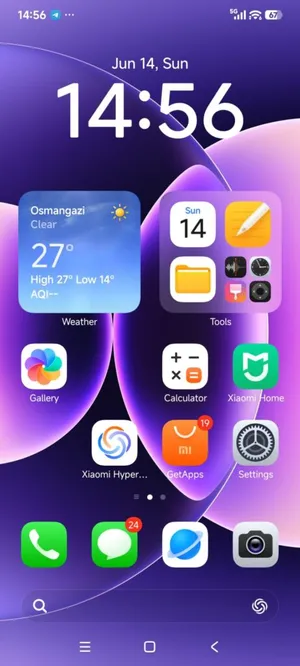
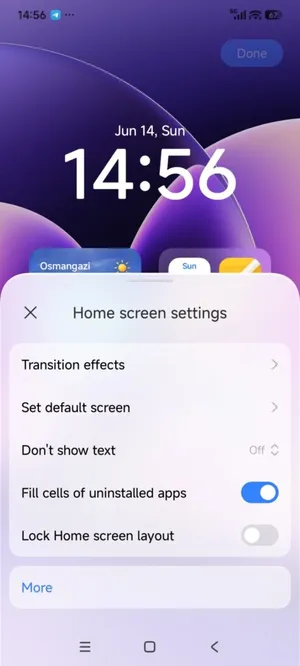
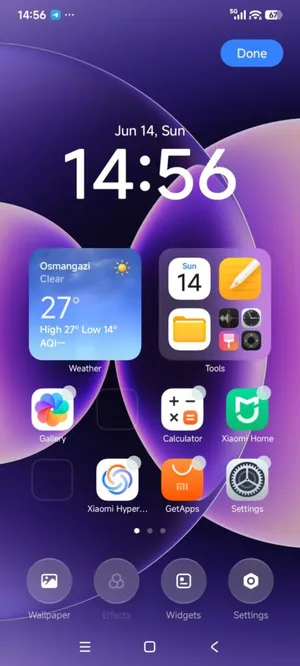
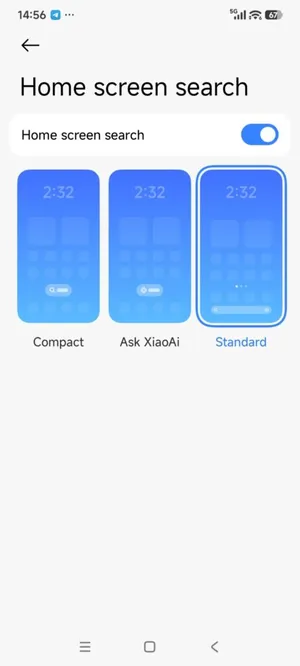
These four captures show the HyperOS launcher itself on a Xiaomi phone: the home grid, the settings page, the edit mode and the search layouts.
How to Install HyperOS Launcher on Android
- Fetch the HyperOS Launcher APK from the download page. Use the download button at the top of this page, wait out the short countdown on the next screen, and tap the button when it appears so the file lands in your downloads folder.
- Remove an older manually installed launcher build first. If you installed a launcher build by hand before, uninstall that copy before installing this one, so the two builds cannot conflict during the install.
- Allow the install when Android asks. Tap the finished file and let your browser install apps for this one file. That prompt is Android doing its job for any app installed from a file.
- Confirm the signature matches. Android only lets a system launcher update in place when the signature matches the original Xiaomi signature. If the install is refused, the file on your phone is not the matching build for your device.
- Open the home screen and check your layout. Press the home button and your existing layout, widgets and folders should be exactly where you left them, on the fresher build.
First Setup: Make It Yours
After the install, spend five minutes setting the shell up once and it stays out of your way for months. Long press an empty spot on the home screen to open the layout controls, then set your grid size, your wallpaper and whether the app drawer shows all apps or only the ones you choose.
Add the widgets you actually glance at: clock and weather on the first screen, calendar beside it if your day runs on appointments. Widgets in HyperOS Launcher come in several sizes, so a widget that only needs a line of text does not have to eat a quarter of the screen.
Finish with folders. Group the apps you open together, name the folders plainly, and put the four apps you open most in the dock at the bottom. A home screen set up this way answers in one tap instead of a hunt.
Widgets
Widgets are where the HyperOS home screen earns its keep. The clock widget carries the time and the date in one glance, the weather widget carries the day ahead, and the calendar widget carries the next appointment without opening anything. Each one can be resized by long pressing it and dragging its edges, so the widget fits the space instead of the space fitting the widget.
Widget stacks are worth knowing about. A stack holds several widgets in the space of one and flips between them with a swipe, which keeps a busy first screen calm. Put the widgets you check most at the top of the stack and the rest stay one swipe away.
If a widget goes blank after an update, remove it and add it again from the widget picker. The widget itself is fine in almost every case; it is the link between the widget and the new build that needs remaking, and re-adding takes seconds.
Gestures and Animations
HyperOS Launcher runs on full screen gestures: swipe up from the bottom edge for home, swipe up and hold for recent apps, swipe in from either edge to go back. The gesture bar at the bottom is a hint, not a button, and it can be hidden once the moves feel natural.
The animations are the part you feel most. An app icon grows into the app itself when you tap it, and the app shrinks back into its icon when you leave. Folders open with a soft pop and the recent apps cards fan out instead of appearing. The effect is small on paper and large in the hand, because you see it on every single tap.
If the animations ever feel slow, the cause is usually the animation scale in the developer options or a phone running low on free memory, not the launcher itself. Close the apps you are not using, restart the phone once, and the glide comes back.
Safety and Verification
Every build published on this page is installed and run on our own Xiaomi and Redmi phones first: the install flow, the first launch, the layout carry over, the widgets, the gestures and the recent apps view are all checked before the button goes up. The file you fetch is the file we tested.
The build carries the original Xiaomi digital signature, and Android enforces that signature itself: a launcher build with a different signature cannot update the system launcher in place, so a mismatched file fails the install instead of slipping through. That signature check is the strongest verification a system app install has.
Before installing, remove any older manually installed launcher build, allow the install only for the file you fetched, and check that your layout survived the first launch. Those three checks take a minute and they catch the only problems this install actually has.
Technical Details
The current build targets HyperOS 4 and also runs on some HyperOS 3.1 builds. Because it is a system launcher, the install is checked the same way Android checks any system update: the build must carry the original Xiaomi digital signature, verified by Android at install time, or the install is refused.
That signature check is the whole reason an older manually installed launcher build has to come off first. Two builds with different signatures cannot sit side by side, and Android says so plainly instead of installing over the wrong one.
Pros and Cons
| What works well | What to know first |
|---|---|
| The whole home screen in one shell: grid, widgets, folders, drawer and gestures | Newer builds need HyperOS 2.0 or newer, and the current build targets HyperOS 4 |
| Smooth open and close animations that make the phone feel fast | An older manually installed launcher build must be removed first to avoid conflicts |
| Widgets in several sizes with a clean HyperOS look | The install needs the signature to match, or Android refuses it |
| Layout, widgets and folders carry across an in place update | Some widgets and effects vary by phone model, region and system build |
| Recent apps cards with split screen from the same gesture |
Troubleshooting
The install fails with a conflict. Uninstall the older manually installed launcher build first, then install again. Two hand installed launcher builds cannot sit side by side, and the conflict error is Android saying exactly that.
The install is refused outright. The signature does not match the launcher on your phone, which means this build is not the matching build for your device. Do not force it; check your HyperOS version and fetch the build that matches it.
Widgets go blank after the update. Remove the blank widget and add it again from the widget picker. The data behind the widget is fine; the link between the widget and the new build needs remaking.
Animations feel slow or stutter. Close the apps you are not using and restart the phone once. If it still stutters, check the animation scale in the developer options and the free storage on the phone.
The home screen layout looks different. Open the home screen settings and check the grid size and the app drawer setting. A grid change reflows every icon, and restoring your usual grid puts them back where you expect them.
How to Update
The launcher updates in place: fetch the new file from the download page, install it over the existing launcher, and Android keeps your data where it is. Your home screen layout, widgets, folders and settings carry across, because none of them live inside the build that was replaced.
Before updating, remove any older manually installed launcher build if you have one, and make sure the phone has enough free storage for the install to finish cleanly. After the install, press the home button once and check that your first screen looks the way you left it.