
Guide
HyperOS Launcher Widgets: Sizes, Stacks and the Ones Worth Keeping
Which HyperOS Launcher widgets earn a place on your home screen, how to resize them, how widget stacks work, and how to fix a widget that goes blank.

Contents On this page
What widgets do on this home screen
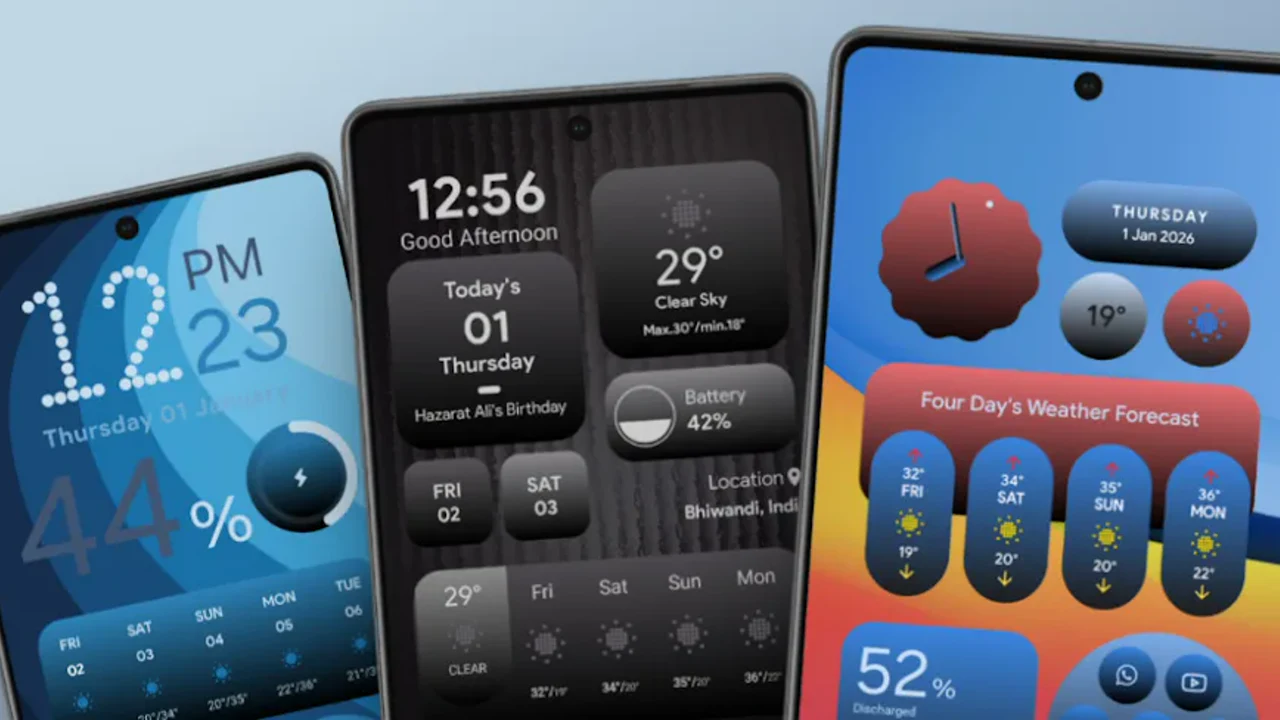
Widgets are the part of the HyperOS home screen you read without opening anything: the time, the weather, the next appointment. A good widget answers a question in one glance; a bad one is a shortcut wearing a widget costume. Start with the file from the HyperOS Launcher home page, so the copy on your phone is the build we tested, then follow the steps below in order.
The three widgets worth keeping
Clock and weather first, because the day starts with both. Calendar second, because the next appointment is the one question the home screen can answer before you unlock the phone. Everything else is optional, and a widget you glance at once a week does not earn a permanent place on the first screen.
Sizes that fit the space
Every widget comes in several sizes. Long press a widget and drag its edges to resize it until it fits the space instead of eating it: a clock that only needs one line does not need a quarter of the screen. If a widget will not resize, it only ships in one size, and the fix is a different widget, not a different setting.
Widget stacks: several widgets, one space
A stack holds several widgets in the space of one and flips between them with a swipe. Put the widget you check most at the top of the stack and the rest stay one swipe away, which keeps a busy first screen calm. Stacks suit the second screen best, where the widgets are useful but not urgent.
Adding and removing widgets
Long press an empty spot on the home screen, open the widget picker, and drag the widget where you want it. Removing is the reverse: long press the widget and remove it. Removing a widget never deletes the app behind it, and the app keeps working exactly as before.
When a widget goes blank
A widget that goes blank after a launcher update is the most common widget problem, and the fix is the simplest: remove it and add it again from the widget picker. The data behind the widget is fine; it is the link between the widget and the new build that needs remaking. If the same widget goes blank twice, try a different size of the same widget. The fixes guide covers the other cases.
Widgets and battery
Widgets that refresh often, such as weather and news, wake the phone more than a static clock does. If battery life matters more than freshness, keep the refreshing widgets to one or two and let the rest update when you open their apps. The battery guide measures the difference.
Conclusion
Keep three widgets, size them to the space, stack the rest, and re-add any widget that goes blank. A home screen with a few honest widgets beats a home screen covered in shortcuts pretending to be widgets.
Quick Answers
How do I add a widget in HyperOS Launcher?
Long press an empty spot on the home screen, open the widget picker, and drag the widget where you want it.
Why did my widget go blank after updating?
The widget link to the new build needs remaking. Remove the blank widget and add it again from the widget picker.
What is a widget stack?
A stack holds several widgets in the space of one and flips between them with a swipe. Put the widget you check most at the top.
Do widgets drain the battery?
Widgets that refresh often use more battery than static ones. Keep refreshing widgets to one or two if battery life matters.