
Guide
HyperOS Launcher Beginner Guide: Your First Week Done Right
New to HyperOS Launcher? The first week routine that works: set the grid, add the widgets you glance at, build folders, learn the gestures and let the home screen settle.

Contents On this page
Start here: the first screen
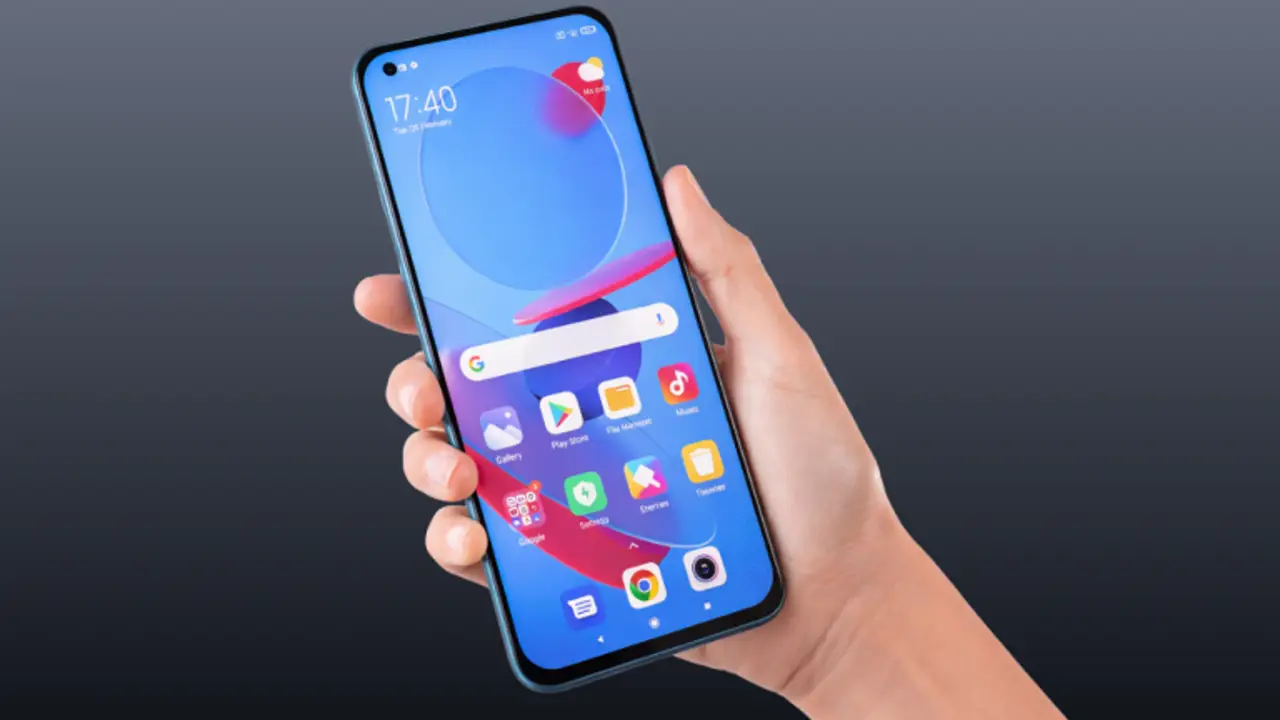
Your first week with HyperOS Launcher is mostly about arrangement, not settings. The launcher is already running the moment you press the home button, so the work is deciding what lives on the first screen and what stays one swipe away. Start with the file from HyperOS Launcher, so the copy on your phone is the build we tested, then follow the steps below in order.
Set the grid and the icon size
Long press an empty spot on the home screen and open the layout controls. A tighter grid fits more apps on one screen, a looser grid is easier to tap on the move, and the icon size follows the same trade. Pick the combination that fits your thumb, not the one that looks busiest in a screenshot.
Add two widgets and stop
Add the clock and weather widget first, then one more you actually glance at, such as the calendar. Two or three widgets is the sweet spot for a first screen; more than that and the screen starts shouting. Widgets come in several sizes, so resize each one until it fits the space instead of eating it.
Build folders for the rest
Group the apps you open together into folders and name them plainly: travel, money, photos, games. A folder with a clear name is found in one tap, and a folder called misc is never found at all. Put the four apps you open most in the dock at the bottom, where they stay on every screen.
Learn the gestures in a day
Swipe up for home, swipe up and hold for recent apps, swipe in from the edge to go back. The gesture bar at the bottom is only a hint, and it can be hidden once the moves feel natural. Give the gestures one full day before judging them; the first hour always feels slower than the buttons you came from. The gestures guide walks through each move and the settings behind it.
Let the layout settle
Resist rearranging the home screen every day for the first week. Muscle memory is the real speed of a launcher: your thumb learns where things are, and every rearrangement resets that learning. Change one thing at a time, use it for a day, and keep only the changes that survive the day.
When something looks wrong
A blank widget after an update is fixed by removing it and adding it again. A slow animation is usually a phone low on free memory, fixed by closing unused apps and restarting once. A missing app is usually in the app drawer, not deleted. The fixes guide covers the rest.
Conclusion
A good first week with HyperOS Launcher is a quiet one: grid set, two widgets, plain folders, four apps in the dock, and gestures learned by doing. After that the home screen stops being a project and goes back to being a tool.
Quick Answers
Do I need to set up HyperOS Launcher after installing?
No. It runs as soon as you press the home button. The setup in this guide is arrangement: grid, widgets, folders and the dock, and it takes about five minutes.
How many widgets should I add?
Two or three on the first screen is the sweet spot. More than that and the screen gets noisy; the rest can live in a widget stack or on a second screen.
How do I learn the gestures quickly?
Use them for one full day without switching back. Swipe up for home, swipe and hold for recent apps, swipe in from the edge to go back.
Will my layout survive an update?
Yes. The launcher updates in place, and your layout, widgets, folders and settings carry across.