
Guide
HyperOS Launcher Folders: Group Apps So You Find Them in One Tap
Use HyperOS Launcher folders properly: naming by job, the right number of apps per folder, folders on the dock, and what to do when a folder feels slow.

Contents On this page
What folders are for
A folder is a drawer for the apps you open together. It earns its place when opening it is faster than searching the app drawer, and it fails when it becomes a second drawer with a prettier lid. Start with the file from HyperOS Launcher APK, so the copy on your phone is the build we tested, then follow the steps below in order.
Name by job, not by app
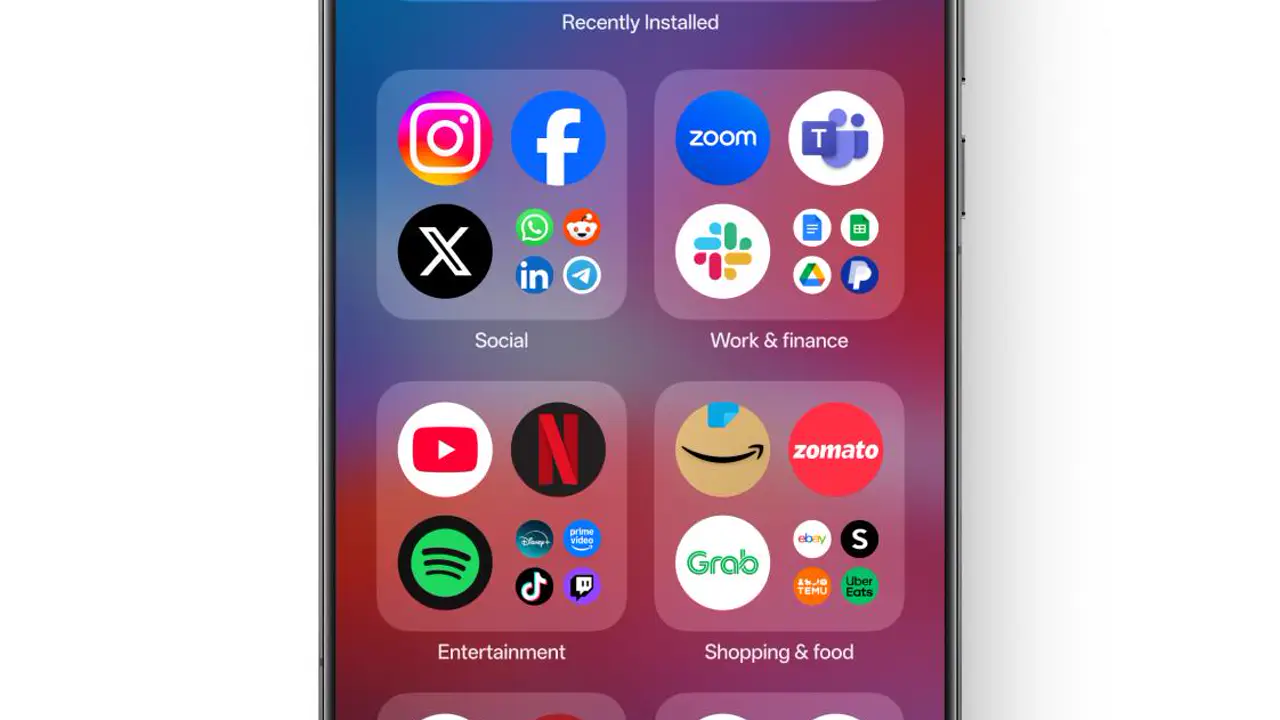
Name a folder by what you do with the apps inside it: travel, money, photos, games, work. A folder named by its job is found in one tap, because you think of the job first and the app second. A folder named misc, or named after one app inside it, is never found at all.
How many apps per folder
Six to eight apps is the sweet spot for a folder. Fewer than that and the folder is not saving you a tap; more than that and opening it becomes a second hunt, with its own scrolling. If a folder grows past eight, split it by job: travel splits into flights and stays, money splits into banking and shopping.
Making a folder
Drag one app icon onto another and the launcher builds a folder from the two, with a name you can change straight away. Add more apps by dragging them in, and remove one by dragging it out. The apps inside a folder stay installed and searchable in the app drawer, so a folder never hides anything.
Folders on the dock
A folder in the dock works when it holds the apps you open from anywhere: the folder is one tap, and the app inside it is a second tap, which is still faster than swiping to a screen and hunting. Keep only one folder in the dock; two folders in the dock means the dock has stopped being a dock.
Folders and the drawer
Folders and the app drawer do different jobs. A folder is for the apps you open together; the drawer is for everything installed, searchable by name. An app that lives in a folder still lives in the drawer too, so nothing is ever lost by grouping it. If you cannot find an app, search the drawer first, as the search guide explains, before rebuilding folders.
When a folder feels slow
A folder feels slow when it holds too many apps or when its name does not match how you think. Split it, rename it by its job, or move its most opened app out onto the home screen itself. The home screen setup guide shows where that app belongs.
Conclusion
Name folders by their job, keep six to eight apps in each, and put only one folder in the dock. A folder set up that way is found in one tap, which is the only test that matters.
Quick Answers
How do I make a folder in HyperOS Launcher?
Drag one app icon onto another and the launcher builds a folder from the two, with a name you can change straight away.
How many apps should a folder hold?
Six to eight. Fewer and the folder saves no tap; more and opening it becomes a second hunt.
Do apps in a folder still appear in the app drawer?
Yes. A folder never hides anything; every app inside it stays installed and searchable in the drawer.
Can I put a folder in the dock?
Yes, and one folder in the dock works well. Two folders in the dock means the dock has stopped being a dock.