
Guide
HyperOS Launcher Notifications: Badges, Dots and a Quieter Home Screen
Control HyperOS Launcher notifications: app badges, notification dots, which apps earn a badge, and how to quiet a noisy home screen without missing anything.

Contents On this page
What badges say
A badge on an app icon says one thing: something inside the app wants you. A number says how many somethings. The badge is useful when it is true and noise when it is not, and the difference is decided by which apps are allowed to wear one. Start with the file from HyperOS Launcher APK, so the copy on your phone is the build we tested, then follow the steps below in order.
Dots and numbers
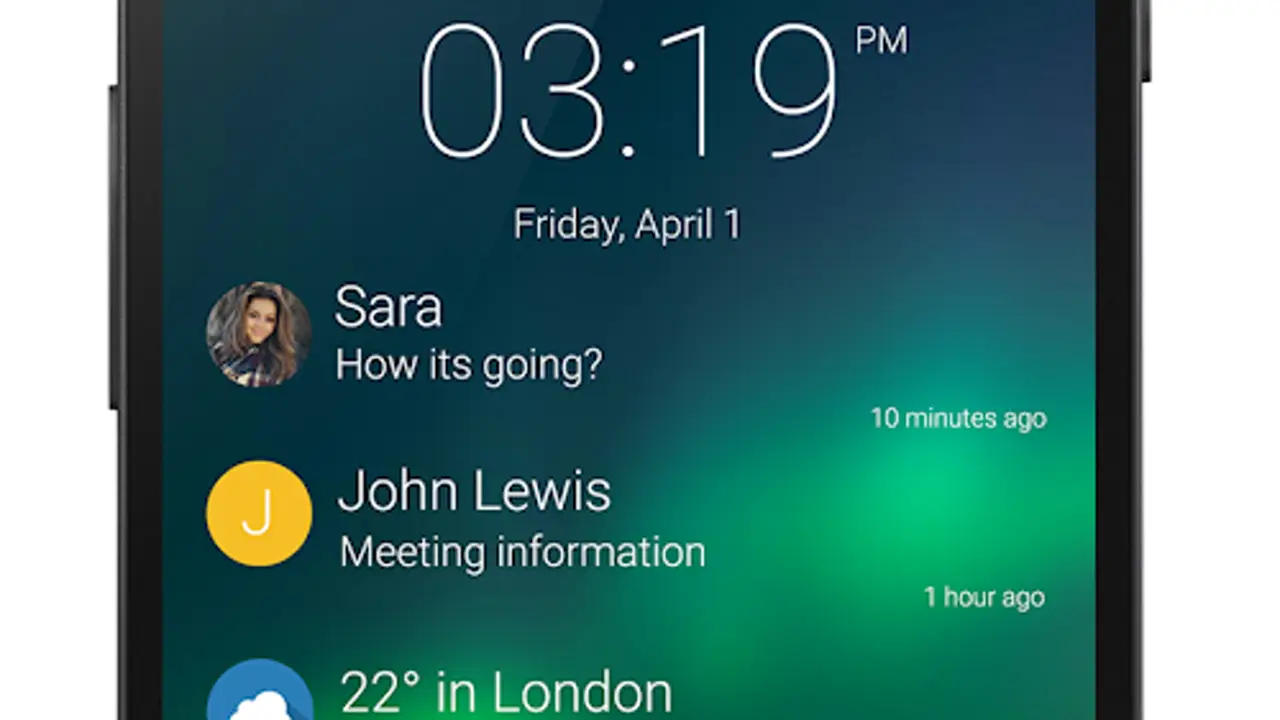
HyperOS Launcher shows notification dots and numbered badges on app icons. A dot says something is waiting; a number says how much is waiting. Numbers suit messaging apps, where the count is the point; dots suit everything else, where the count is only pressure. Pick the style per app, not for the whole phone at once.
Which apps earn a badge
Messaging and mail earn badges, because a missed message is a missed thing. Social apps earn badges only if you answer them the same day; otherwise the badge is a guilt counter, not a tool. Games and shopping apps never earn a badge, because their notifications are wants, not needs, and a want does not belong on the home screen.
Clearing a badge
Opening the app clears its badge, and swiping the notification away usually clears it too. A badge that survives opening the app is a notification the app has not marked as read, and the fix is inside the app, in its own notification settings, not in the launcher.
Quieting a noisy screen
A noisy home screen is fixed app by app, not all at once. Open the notification settings for the loudest app, turn off the categories you never act on, and leave the one category you do. Do that for three apps and the screen goes quiet; do it for all of them at once and you will miss something you needed. The battery guide covers the same apps from the power side.
Badges after an update
A badge that disappears after a launcher update usually returns after the app is opened once, because the launcher relearns the count from the app. A badge that stays wrong is an app notification setting, and the fix is inside the app. If several badges misbehave at once, restart the phone, as the fixes guide explains.
The lock screen question
Badges and lock screen notifications are separate settings. A badge on the home screen does not mean the notification shows on the lock screen, and hiding lock screen notifications does not hide the badge. Set them separately: the lock screen for privacy, the home screen for triage.
Conclusion
Badges for messaging and mail, dots for the rest, nothing for games and shopping. A badge that is true is a tool; a badge that is always on is noise, and noise gets turned off.
Quick Answers
How do I turn off notification badges?
Open the notification settings for the app and turn off its badge. Badges are set per app, not for the whole phone at once.
Why does a badge stay after I open the app?
The app has not marked its notification as read. The fix is inside the app, in its own notification settings.
What is the difference between a dot and a number badge?
A dot says something is waiting; a number says how much is waiting. Numbers suit messaging apps, dots suit everything else.
Why did my badges disappear after an update?
Open each app once and the launcher relearns the count. If several badges misbehave at once, restart the phone.