
Guide
HyperOS Launcher on a Tablet: A Home Screen That Uses the Big Screen
Set up HyperOS Launcher on a tablet: the wider grid, landscape layout, widgets that earn the space, and the gestures that change on a big screen.
Contents On this page
A bigger canvas
A tablet gives HyperOS Launcher a bigger canvas, and the launcher uses it: a wider grid, bigger widgets, and a landscape layout that a phone never gets. The same shell, the same gestures, and a home screen that finally has room to breathe. Start with the file from HyperOS Launcher APK, so the copy on your phone is the build we tested, then follow the steps below in order.
The wider grid
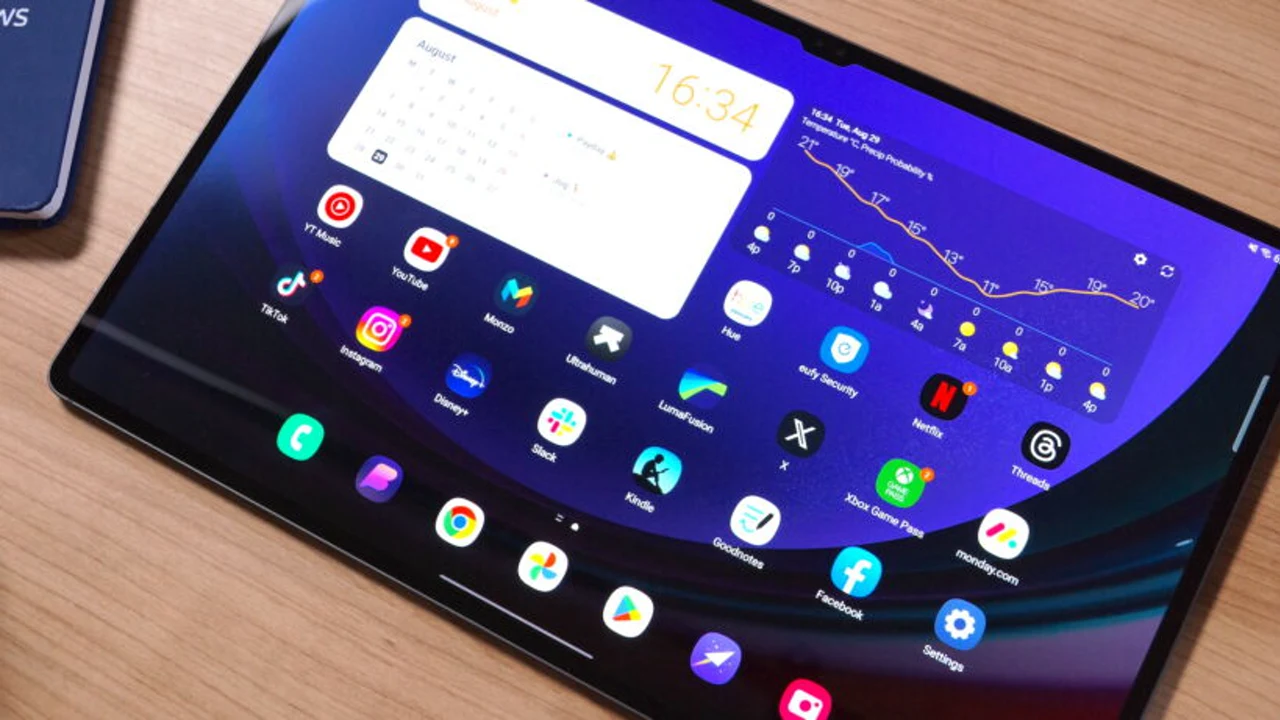
Open the layout controls and widen the grid. A tablet grid that mirrors a phone grid wastes the screen; a grid with six or seven columns fits the apps you actually use without scrolling. The icon size can grow with the grid, because the thumb has further to travel and the screen has room for it.
Landscape layout
In landscape, the home screen stretches sideways, and the widgets stretch with it. A clock widget that is a strip on a phone becomes a panel on a tablet, and a calendar widget shows the week instead of the day. Set the layout in landscape, not portrait, because that is how the tablet is actually used.
Widgets that earn the space
On a tablet, widgets earn space a phone cannot give them: a full calendar week, a weather panel with the days ahead, a notes widget you can actually read. Put one large widget on the first screen and let it do the work of three small ones. The widgets guide covers the sizes.
The dock on a tablet
The dock holds more apps on a tablet, and it should: the apps you open from anywhere are more numerous when the screen is bigger. Put six in the dock instead of four, and keep a folder in it for the apps that travel together.
Gestures on a big screen
The gestures are the same, but the distances are longer: a swipe up for home travels further, and the edge swipe for back is further from the thumb. Use the edge your thumb rests near, and rest the tablet on a surface when the gestures feel like a stretch. The gestures guide covers the moves.
When it feels like a phone
A tablet home screen that feels like a phone home screen is a grid that was never widened. Widen the grid, grow the widgets, and let the landscape layout do its work; the tablet stops being a big phone and starts being a tablet.
Conclusion
Wider grid, bigger widgets, landscape first, and a dock that holds six. A tablet home screen set up that way uses the screen it has, instead of imitating the phone it is not.
Quick Answers
Does HyperOS Launcher work on tablets?
Yes. The launcher installs and runs on Android tablets, and the bigger screen suits both the grid and the widgets.
How do I set up the home screen on a tablet?
Widen the grid in the layout controls, grow the widgets, and set the layout in landscape.
How many apps fit in the tablet dock?
Six, instead of the four that suit a phone. Keep a folder in it for the apps that travel together.
Do gestures work the same on a tablet?
Yes, but the distances are longer. Use the edge your thumb rests near.